Bug #24345
closedSite layout issues
0%
Description
Hi All,
The TLC site layout is not displaying correctly on the front end, particularly on the home page and the project page.
https://tlc.commons.gc.cuny.edu/
https://tlc.commons.gc.cuny.edu/projects-resources/
for example, the back end of the project page you can see that the page should be laid out in 3 columns with a project per column but on the front end, the images display much larger with one image per line. On the home page, there should be two columns below the header image (announcements and connect), but the same issue is happening here. I cannot figure out how to resolve this on the site. Is this perhaps related to a recent wordpress or php update?
thanks,
Laurie
Files
Related issues
Updated by Raymond Hoh 9 months ago
- File 2026-02-02_113638.png 2026-02-02_113638.png added
- Category name set to WordPress (misc)
- Status changed from New to Reporter Feedback
- Target version set to Not tracked
Hi Laurie,
There were two issues:
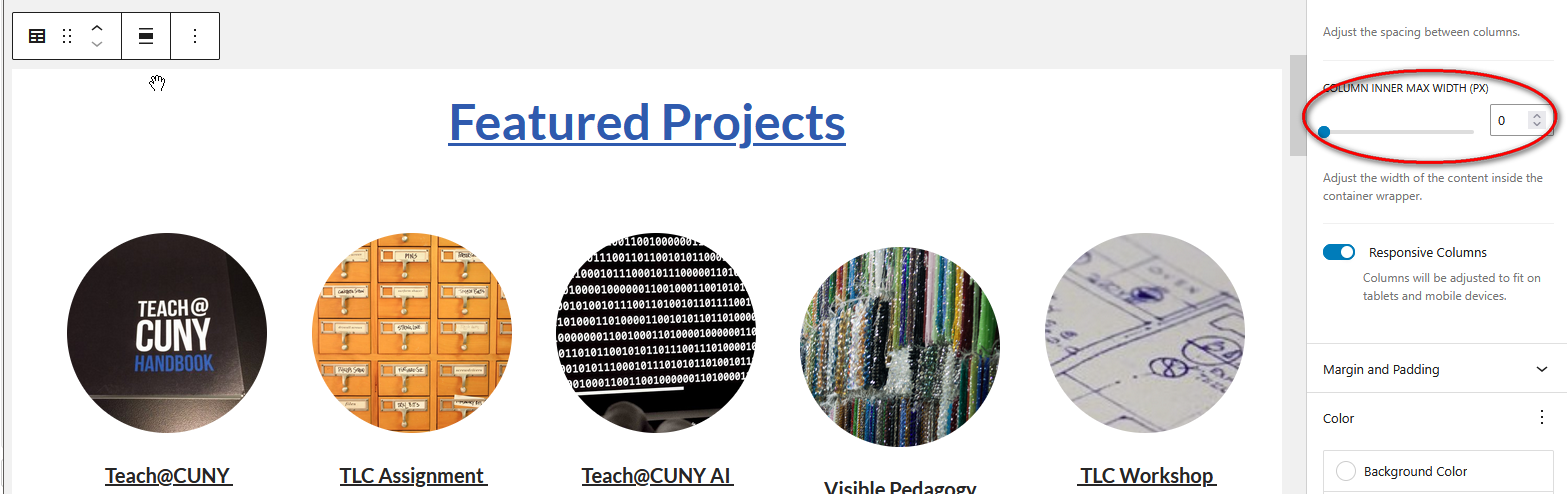
1. On the homepage, the middle blocks inner width were set to use a max-width of 1200px. I've reset this to 0 in the block editor. See attached screenshot.
2. On the Resources page, for the WP Customizer's "Simple CSS" section, there was a declaration to set the container's max-width to 1800px. I've removed this CSS declaration.
Let me know if anything else looks out of place.
Edit: Sorry! I'm just reading the original post through and will try to match what was written.
Updated by Raymond Hoh 9 months ago
For the columns issue, it appears that the Advanced Columns block is not rendering the correct CSS on the frontend. I'm not sure what is going on here, so for now, I've switched over the Advanced Columns blocks to WP's native Columns block and the columns should be rendering correctly now.
The Advanced Columns block is powered by the Atomic Blocks plugin, but it looks like the Atomic Blocks plugin is no longer being updated. Genesis Blocks appears to be the successor. We should look to add this plugin to the Commons.
Let me know if anything else needs to be tweaked, Laurie.
Updated by Laurie Hurson 9 months ago
Thanks so much for looking into this Ray, and for making those changes. The site seems to be rendering correctly now.
This is bad news about atomic blocks - yikes! I will look into genesis block plugin, but also maybe I should just transition to trying to use native WP blocks where possible.
thanks again.
Updated by Laurie Hurson 8 months ago
- File columns endlessly.mp4 columns endlessly.mp4 added
Hi Again,
I think the same issue is also happening here: https://criticalai.commons.gc.cuny.edu/research/ for the presentations lists. I can see the block set up on the back end but this does not display on the front end.
Based on your previous fix, I think I need to change the "advanced columns" blocks to regular columns block. However, every time i try to do this it creates a new nested column that again contains an advanced column on and on. See video.
I'm sure this is user error but I am not sure how to change the advanced column to native column in a way that makes it render correctly. Can you let me know the right way to do this?
Thanks!
Updated by Laurie Hurson 8 months ago
Hi All,
Just following up on this -- I changed everything manually but am still wondering: is there a simple way to switch block from "advanced column" to WP native "column" block without rebuilding the content from scratch? When i try to transform the adv block it just buries the adv column deeper within native column and does not resolve the issue.
If there is no way to do simply, and must be done manually that would be good to know but it seems strange that the "transform" block feature doesn't seem to work on adv columns?
Updated by Raymond Hoh 8 months ago
Hi Laurie,
I'm currently not in front of my computer right now, but what I did before was use the Block Editor's List View and dragged and dropped each of the children blocks under the parent Advanced Column block into the new, native WP Column block. Unfortunately, I couldn't find an easier way to do it.
Hopefully my textual description is enough for you to proceed. If not, I can record a GIF for you when I'm back in front of the computer. The other alternative is to install the Genesis Blocks plugin, which might add an easy way to convert the previous Atomic Blocks over to the new version.
Updated by Laurie Hurson 8 months ago
Thanks Ray! Yes, that is what i ended up doing - dragging and dropping the content. I just wanted to check to see if there was another way using the "transform" block feature, but your explanation helps clarify that, in this case, the manual method is most effective. Thanks again!
Updated by Raymond Hoh 5 months ago
- Related to Bug #24966: Layout Question added
Updated by Raymond Hoh 5 months ago
- Status changed from Reporter Feedback to Resolved
Marking this one as resolved.